Conducting new trades
General information
Carrying out trading procedures is the main function for organizers at ETP.The following types of purchases are supported on the site:
-
Auction is a procedure in which participants consistently make their price offers.The winner The participant who offers the best price is recognized.
-
Competition - a procurement method in which participants’ applications are assessed against a set of competitive criteria.The winner is chosen by the auction organizer based on the proposed price offer and summary assessment of the application for participation according to the bidding criteria.
-
Request for prices - a procurement method in which participants’ applications are assessed against a set of competitive criteria.The winner is chosen by the auction organizer based on the proposed price offer. The auction organizer is not obliged to conclude an agreement.
-
Request for proposals - a procurement method in which applications participants are judged against a set of competitive criteria.Winner selected by the auction organizer based on the proposed price proposals and the overall assessment of the application for participation according to the bidding criteria. The auction organizer is not obliged to conclude an agreement.
-
Closed auction - a procurement method in which bids from participants are assessed against a set of competitive criteria.On the appointed date and time of opening envelopes, the organizer opens the price offers of the participants. The winner is selected by the auction organizer based on the proposed price offer and summary assessment of the application for participation according to the bidding criteria.
-
Public offer - a procedure in which the price of a lot changes according to specified intervals changes in the public offering price.The winner is selected by the organizer based on the proposed price offer.
-
Prequalification selection (PQS) is a procedure whose purpose is to form a composition of competitive procurement participants capable of performing certain types of work, providing certain types of services, supplying certain goods, in accordance with the requirements established in the competitive procurement documentation.
The process of publishing trading procedures is common to all types bidding
To publish new trades in the system, you can either create them, or copy.
The ability to copy a trading procedure is convenient in case of repeat bidding or if there is a similar procedure, the data of which can be use so as not to fill them out again in the notice.
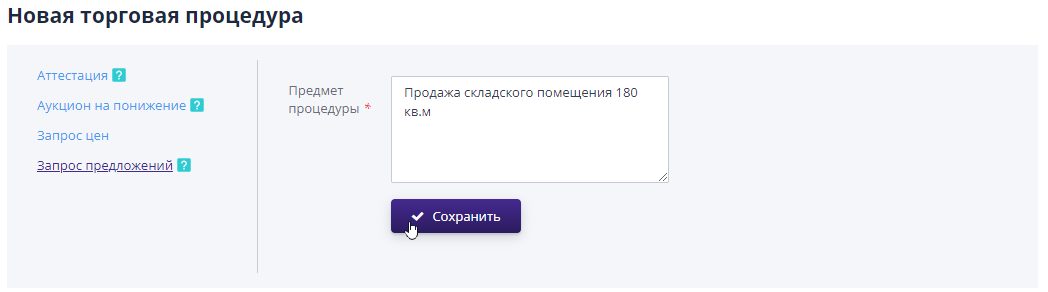
To create trades from scratch you need to go to the “Organization” section trading procedures" and select the sub-item "Carry out trading procedure". A page will open to indicate the type of auction and the subject of the procedure.After saving will create an empty project notices:
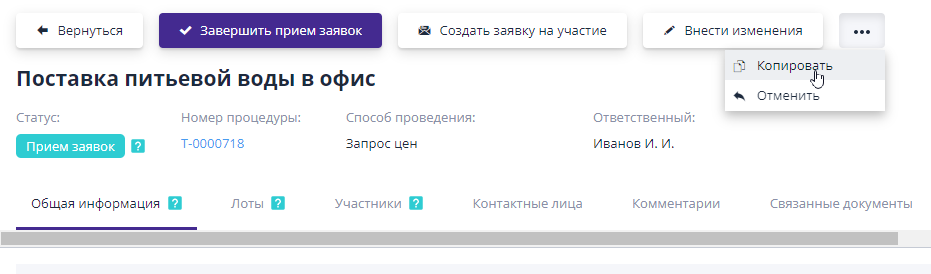
To create trades by copying you must select the one to be copied trading procedure in the journal “Organization of trading procedures” and go to its viewing page.Select additional options in the top menu (button with three dots) and click on the “Copy” button.Will a duplicate of the original tender was created in the status “Draft notification” (all data the original trading procedure will be transferred to the new one):
Creating a trading procedure by announcing a new stage
If during the main stage of bidding it was not possible to identify a winner, In the “Summing up” status, the organizer can announce a new stage of the auction. All applications for participation submitted at the previous stage are not included in the new stage. are considered valid.All these procedures are subject to change according to at the request of the organizer.
From a completed request for proposals or request for prices, the organizer can announce a new stage in the form of: a down auction, a request for prices or request for proposals.
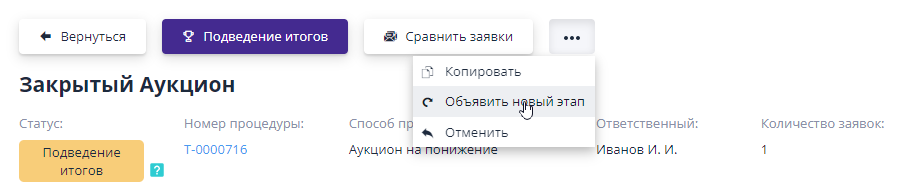
After clicking on the “Announce a new stage” button, you must select the type created trading procedure, fill in the required data and publish it.The published trading procedure will includeautomatically invited participants who were admitted by the organizer during the previous stage.
Filling out the procedure data and publishing it is described in the following sections of the manual.
Setting up a trading procedure for publication
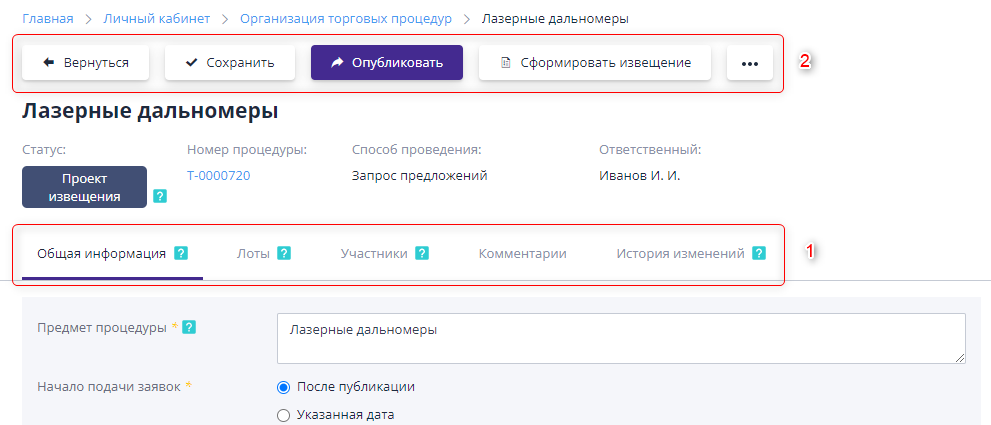
For convenience of working with the created trading procedure, it is divided into logical parts that are located on different tabs (1).General Some information and settings are located on the “General Information” tab. Procurement details that relate to a specific lot are completed on "Lots" tab.Invitations to participate are added on the tab "Participants".Comments are indicated on the “Comments” tab.To see the changes in the trade and the user who made these changes, there is a “Change History” tab.Before going to another tab should save the changes made via the button on quick access panels on top (2):
Filling out basic information and additional settings for the procedure
Each trading procedure contains general information that applies to the whole procedure.This information is located on the General tab information".Editing is available in the “Draft Notice” status up to before publication of the procedure.All changes are applied at the click of a button "Save" on the bidding quick access panel.
Filling in general information about the procedure
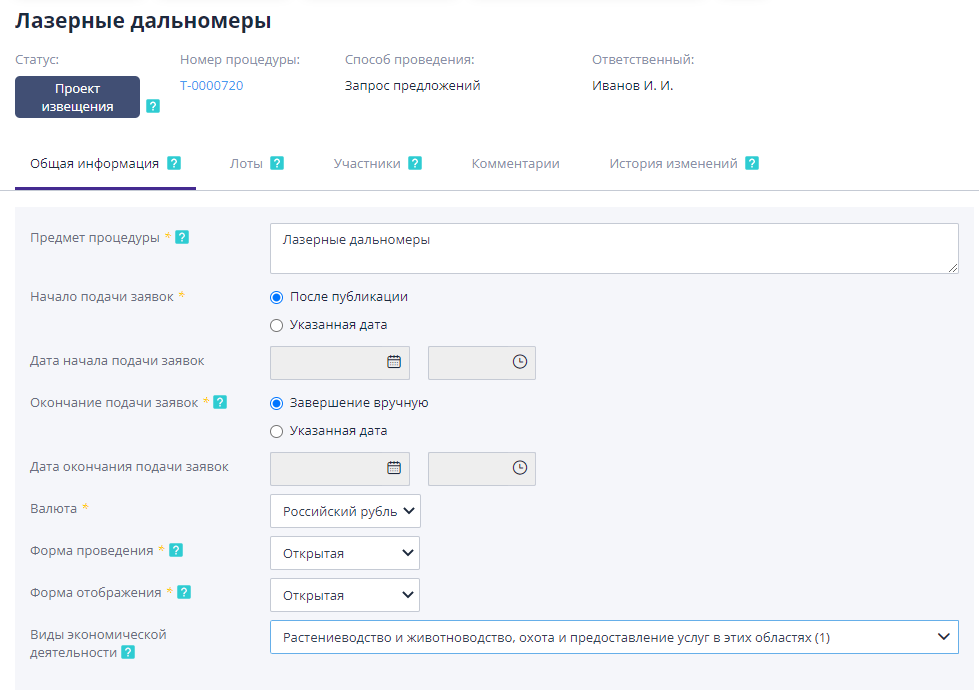
The general information must include the following information:
-
Subject of the procedure - a list of works or goods for which you need to find a contractor or supplier;
-
Start of submission of applications - a specific date and time can be indicated start of accepting applications, or you can set the start of accepting applications immediately after publication of trades;
-
Application deadline - a specific date may be indicated and closing time for accepting applications, or you can set the end manually (the organizer himself chooses when to stop accepting bids);
-
Date and time of opening of envelopes - indicate the specific date and the time when the organizer will be able to view price offers from participants (used for a closed auction);
-
Start date and time – indicate the date and time of the trading session;
-
Trading currency - Russian ruble by default;
-
Conduct form - specifies the opportunity for the participant to take part in trading procedures:
-
Open - anyone can apply for participation registered and authorized participant on the site;
-
Closed - trading procedures are visible to everyone in the public domain, but Application for participation in trade procedures can only be submitted by a participant who has received an invitation from the auction organizer.
-
Display form - sets the procedure visibility for users in magazine "Trading Procedures":
-
Open - trading procedures will be published in the magazine bidding with public access to viewing information about the bidding;
-
Closed - trading procedures are available for viewing only for some participants in the “Trading” section of their personal account procedures".
-
Types of economic activity - the type of economic activity is indicated activity by which the subject of the procedure is classified.
-
Type of work - indicates the type of work that will be carried out at the site.
Additional settings
To conduct a trade, you can set the following settings:
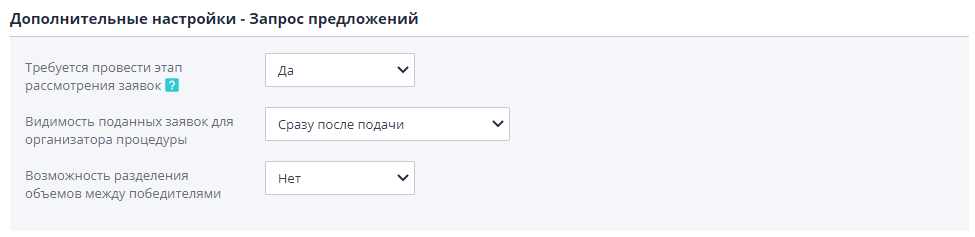
Setting “It is required to carry out the application review stage” establishes the presence of a definition stage in the request for proposals participants.If the setting value is “No”, then after completing the stage acceptance of applications, submitted applications will be automatically admitted.If value “Yes”, then a decision will need to be made for each application (accept or reject).
Setting “Visibility of submitted applications for the procedure organizer” sets a period for reviewing submitted applications by the organizer.If value of the setting “After the end of accepting applications”, then the customer will be able see applications only after the end of the period whenSubmission of applications.If value “Immediately after submission”, then each application can be viewed immediately after its submission by the participant. If value “Limited immediately after submission”, then general information for each application (name of the participant’s company, date and time of submission) can be viewed immediately after its submission by the participant.
If the volume separation functionality is enabled in the system, then Setting “Possibility of dividing volumes between winners” establishes the possibility of dividing the volumes of goods, works and services between several participants.
Qualification criteria for selection of applications
On the General Information tab, you can set qualification criteria for participant applications.Criteria will be added to the application for participation in the form of fields that will be offered to the participant to fill in when when forming an application or to the organizer when considering the application.
Criteria can be added to a trading procedure one at a time or as a group. The values that were previously created in the log are used “Evaluation criteria” of the section “Organization of trading procedures”.If any there are not enough criteria to add to the trading procedure, you should add them to the general directory of criteria.
Adding to the trading procedure occurs using the “Select” buttons criteria" (in the list, the required criteria are marked with checkmarks) and "Selection criteria groups" (select a group from the drop-down list):
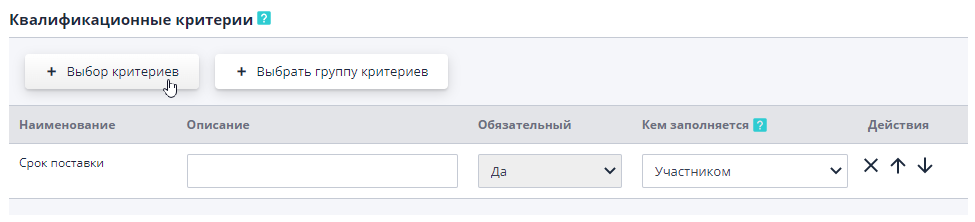
The Up Arrow, Down Arrow and Cross buttons allow manage criteria as list elements - change the order of criteria in list, remove from the list.
Requirements for participant documents
In the “Requirements for participant documents” section, you can specify what types documents will be requested as part of the application for participation.The document can be add manually using the button "Create", "Select document types" from the document journal or “Select a group of documents”:
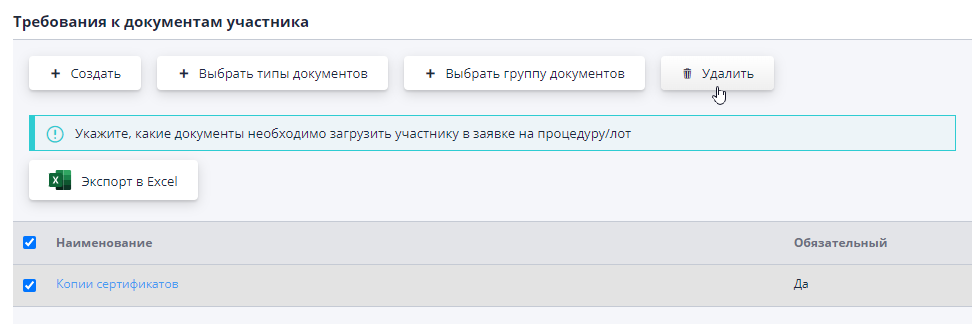
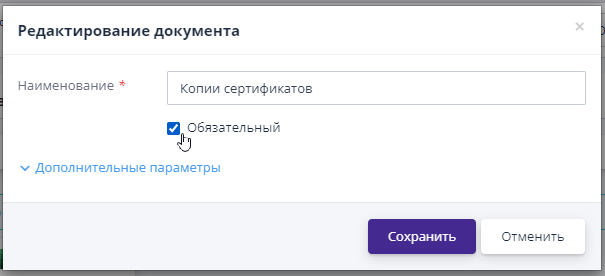
By default, all added documents will be required to be uploaded participant in his application.To change this, just click on link in the name of the document type and uncheck the box in the dialog that opens "Required":
If to participate in the lot you need to present other additional documents, you should indicate them on the lot information page.
Trading documents
In the auction, the organizer needs to add documents on the procedure, from where participants will be able to receive detailed information on the procedure. Such documents are “Notice” and “Procurement Documentation”. Uploading a document file to the site is carried out using the button "Add", which is located next to the document title.
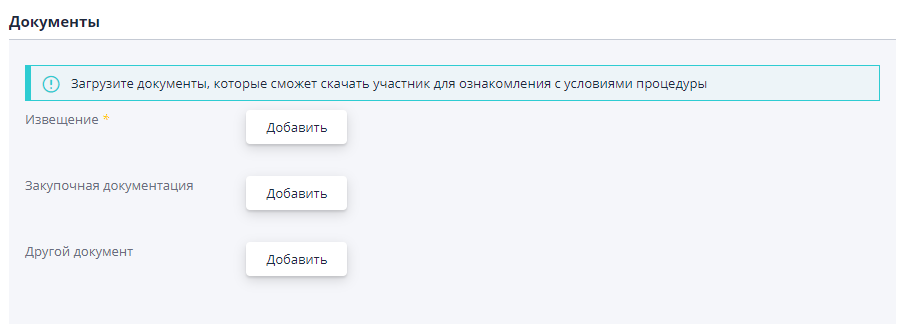
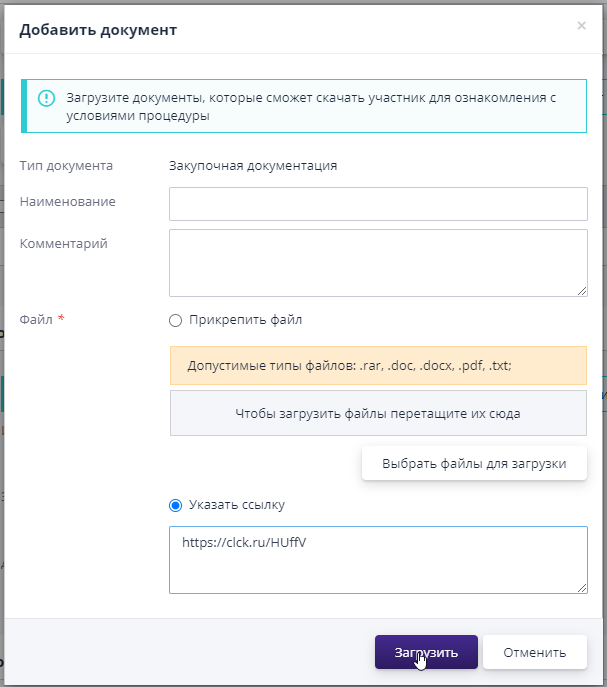
Each document type can have its own list of acceptable types of files to upload, it will be indicated on the document upload form. Uploading a document can be done in one of three ways:
1st method, click the “Select files to upload” button and then select the required documents from your PC.To download several at once files, you must hold down the Ctrl key on your keyboard.
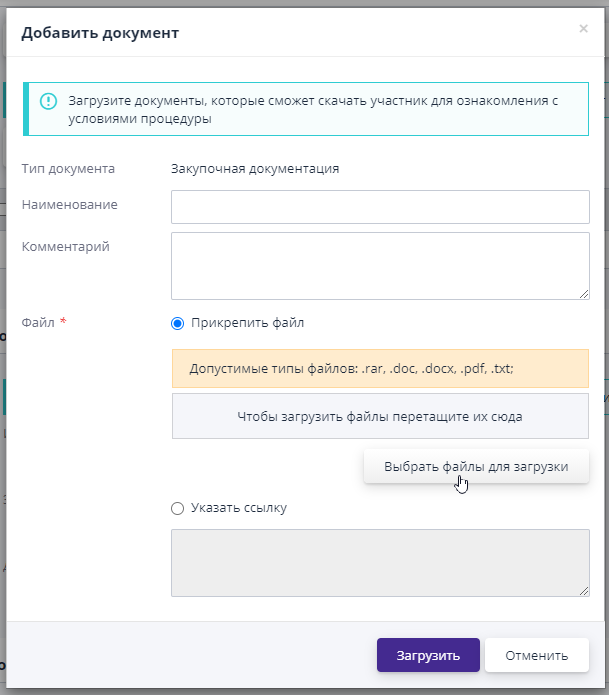
2nd method if the volume of documents to be downloaded is large, you can use a link to download documents from a third party resource.This download method may not be available for some types documents.
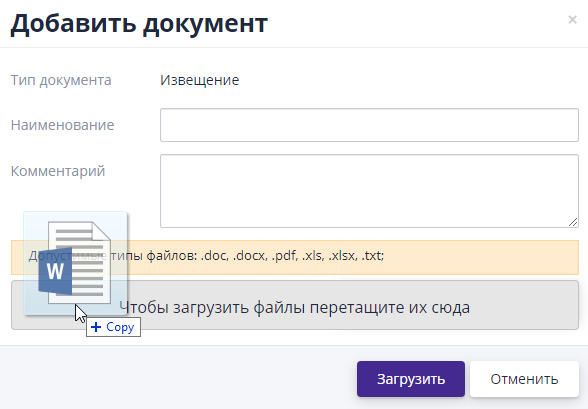
3rd method documents can be dragged and dropped onto the upload form.For this select the desired file on your PC, hold down the left mouse button and drag the file on the form.Lower to load.
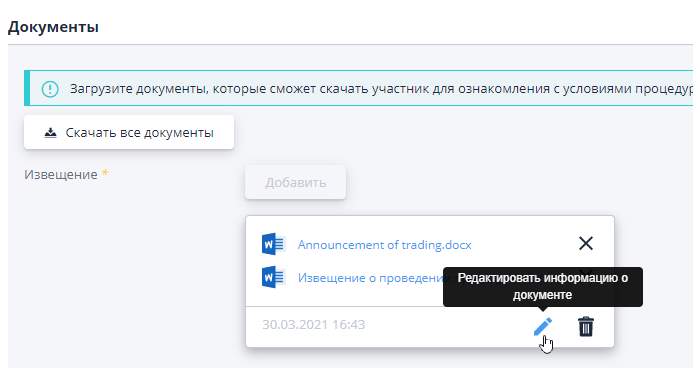
For each downloaded document, you can specify the name and comment.Editing the description and deleting a document is available via buttons located to the right of the loaded document file:
Contact persons for the trading procedure
When creating a procedure, you can specify contact persons - those employees companies from which participants can consult on any questions about the conditions of participation in the auction.
To add one or more contacts to a procedure, they necessaryselect “Contact person” from the list (arrow sign on the right side of the field) or start entering the employee’s full name (the system will prompt suitable options to choose from).The list is formed from employees who are assigned the Contact person role in the organization.If not on the list suitable for the user assignment, you must contact to the company administrator with a request to add this or that employee role of contact person.

After publication of the trading procedure for participants will be available information about contact persons: first name, last name, contact phone number and e-mail.
Block “Tender Commission”
When creating a procedure, you can specify a tender commission.You can add a pre-established commission or create a new one.After publication Commission procedures can be changed.
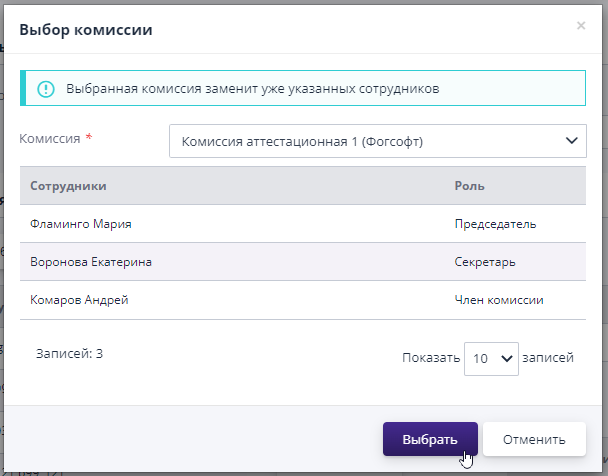
In order to add the created tender commission, you must click to the “Select an existing commission” button. In the window that opens, from list of created commissions, select the required one and click on the button "Choose":
 You can add employees by marking them with a checkmark in the “Employees” block with
left side, then press the corresponding button
“Enable”. Only those employees need to be added to the commission
who have the role “Member of the competition committee”.The chairman may be
maximum one employee, and unlimited number of secretary and commission members
number of employees:
You can add employees by marking them with a checkmark in the “Employees” block with
left side, then press the corresponding button
“Enable”. Only those employees need to be added to the commission
who have the role “Member of the competition committee”.The chairman may be
maximum one employee, and unlimited number of secretary and commission members
number of employees:
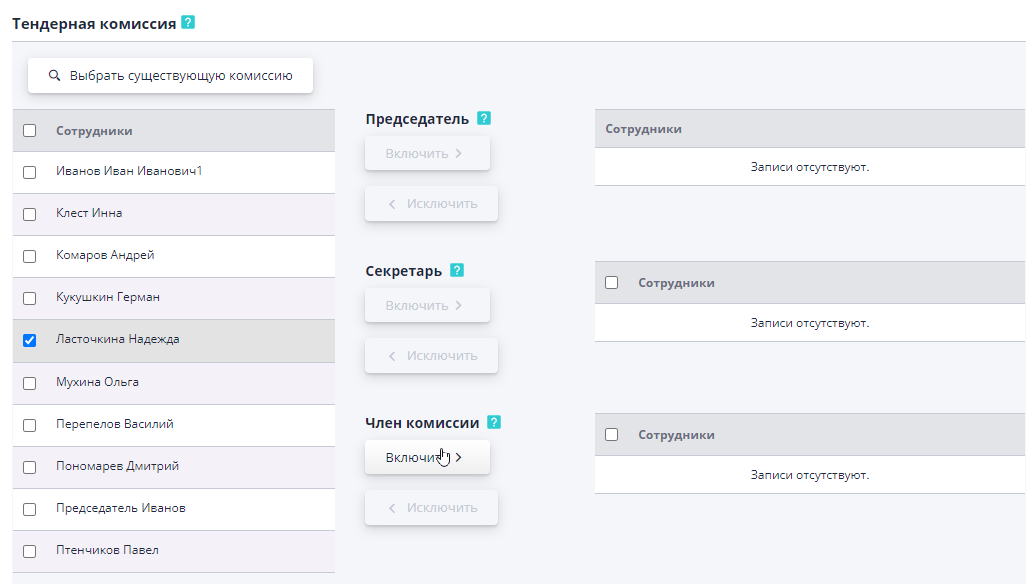
If an employee is added by mistake, then you need to indicate him in block “Employees” on the right side and click “Exclude”.
Filling out lot data
Each created trading procedure must contain at least one lot.When creating a procedure from scratch, by default the system creates the first a lot that is not filled with any data.
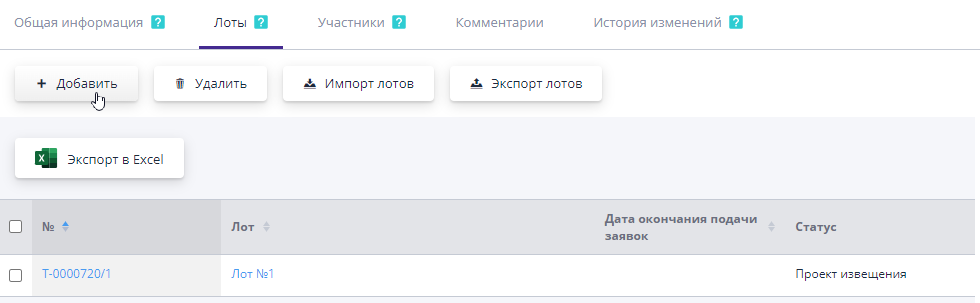
On the “Lots” tab, operations for working with lots are available: creating a new lot occurs by clicking the “Add” button;removing marked lots from list by clicking the “Delete” button, importing and exporting lots by corresponding buttons, and proceed to editing lot data by link in its number and name:
Editing and setting up a lot
To proceed to editing lot data, go to the “Lots” tab follow the link in the title or number of the desired lot.
The lot page is divided into logical parts:
-
General information on the lot;
-
Lot settings - set the settings for trading;
-
Lot positions;
-
Evaluation criteria - criteria that relate specifically to the lot;
-
Requirements for participant documents - documents that will be requested as part of the application for participation;
-
Application security - indicate information about the security that must be paid in order to be allowed to participate in trading procedures;
-
Lot documents - documents that you need to familiarize yourself with participants.
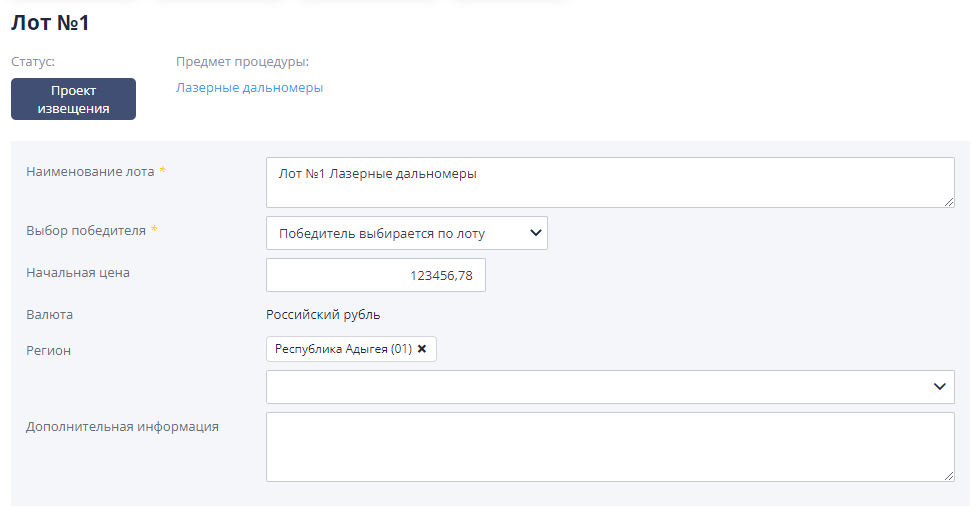
General information on the lot
The general information for the lot contains data describing the requirements. Such as:
-
Lot name - as a rule, a specific item is indicated procurement or work for which a tender is being held;
-
Winner selection - indicates the possibility of selecting a winner by the entire lot or separately for each item;
-
Starting price - indicates the starting price of the lot;
-
Cut-off price (in a public offer for reduction/increase) – the minimum/maximum possible selling price of the lot;
-
Bidding step – indicates the amount of change in the initial price during the bidding:
-
Fixed value – the bidding step is calculated by changing the initial price to a fixed value;
-
Percentage – the bidding step is calculated as a percentage of the initial price of the lot.
-
Currency - Russian ruble by default;
-
Region - indicates the region of delivery of goods, performance of work or services.
-
Additional information - notes that also follow draw the attention of the participants.
####Lot settings
In the lot settings section, you can change the trading progress parameters for a specific lot, previously set in your personal account in pThe “My Organization” section in the “Company Settings” section.
Additional settings - Request for proposals
In the “Additional settings - Request for proposals” section you can set behavior of the lot during its execution at one stage or another.For the way conducting a “Request for Proposals”, one setting is available: “Show current best offer."

If the value is “Yes”, the participant will be shown the current best proposal submitted.Only price criteria will be displayed (for example, amount by item, price).If applications have been submitted by that time has not yet arrived, nothing will be shown to the participant.
If the value is “No” - the participant will not be shown the current best in the application offer.
Lot positions
Each lot can be divided into positions if necessary.Addition positions in a lot is performed by clicking on the “Create” button:
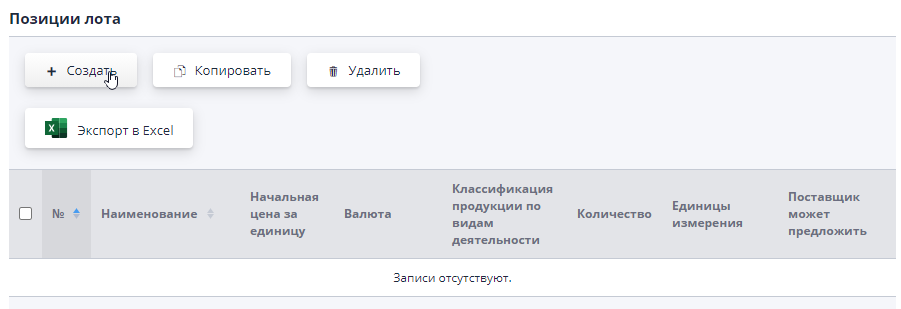
A dialog box will open to fill in the position data.Required for The fields are marked with an asterisk.Data from reference books can be select from the lists by clicking on the button with the arrow icon, or starting to fill out the name of the item.List of fields for positions and their values:
-
Name - the name of the purchased item.
-
Starting price per unit - reference value set organizer.Not required to be specified.
-
Currency - Russian ruble by default.
-
Classification of products by type of activity.
-
Quantity - quantity in the specified units of measurement.
-
Units of measurement - the OKEI classifier is used.
-
The supplier may offer - acceptable values:
-
Only original;
-
Original or analogues;
-
Own specification.
-
Additional information - comment for participants.
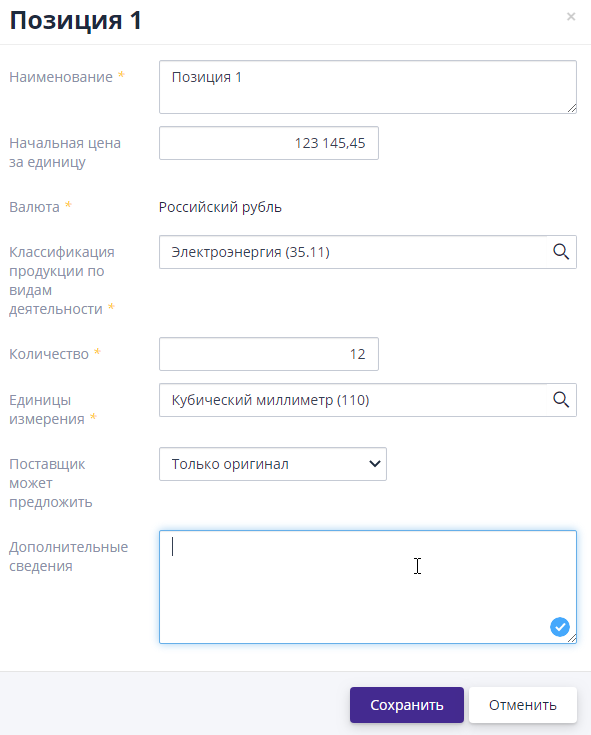
To proceed to editing the data of an already created position, you must follow the link in the position title.
The number of positions within one lot is not limited.
To remove unnecessary items, mark them with a tick and press the button "Delete".
Evaluation criteria
For a lot, you must set criteria for evaluating the participant's application. The criteria will be added to the application form in the form of fields, which the participant will be asked to fill out when completing the application.
Criteria can be added to a procedure one at a time or as a group.Used those values that were previously created in the Criteria journal assessments" section "Organization of trading procedures".If any criteria are not enough to add to the procedure, you should add them to the general reference book of criteria.
Adding to the procedure occurs using the “Select criteria” buttons (in list, the required criteria are marked with checkmarks) and “Group selection criteria" (select a group from the drop-down list):
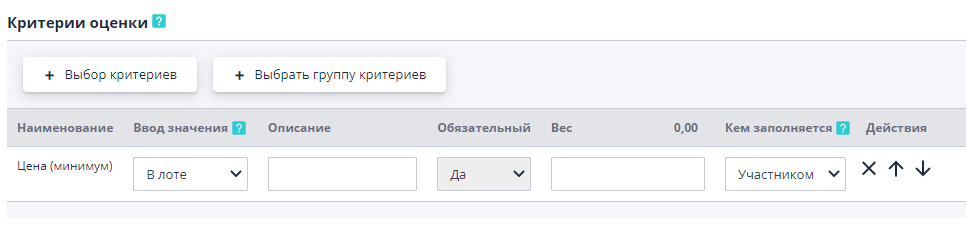
By adding criteria you can specify whether to fill in by lot or by position criterion in the application.
The organizer can specify weights for the criteria, entering the value of which will occur in the lot, for automatic ranking of accepted applications on the summary page.Weight can only be specified according to criteria which can be ranked, for example, by a criterion with the “String” type ranking of applications cannot occur and such a criterion has fields for there will be no input.In total, the specified weights of the criteria should be equal to 100. If weights are not specified, then ranking will occur by date submitting an application for participation.
The Up Arrow, Down Arrow and Cross buttons allow manage criteria as list elements - change the order of criteria in list, remove from the list.
When specifying criteria, the following rules must be followed:
-
At the lot or position level there must be at least one criterion with the “Price” type.
-
If several criteria with the “Price” type are specified at the lot level, then At the lot level, one criterion with the “Amount” type must be added.
-
If a criterion with the “Price” type is specified at the position level (one or some).Then at the position level and at the lot level there should be criteria are givenwith the “Sum” type (one at a time).
-
If the item says “Own specification”, then it is mandatory add at least one criterion at the position level.
For non-price criteria (type price or amount) can be adjusted mandatory completion of criteria in the application.
Requirements for participant documents
In the “Requirements for participant documents” section, you can specify what types documents will be requested as part of the application for participation.The document can be add manually using the button "Create", "Select document types" from the document journal or “Select a group of documents”:
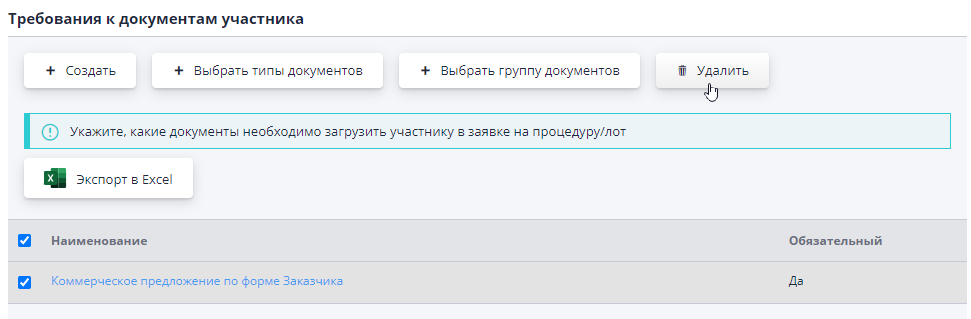
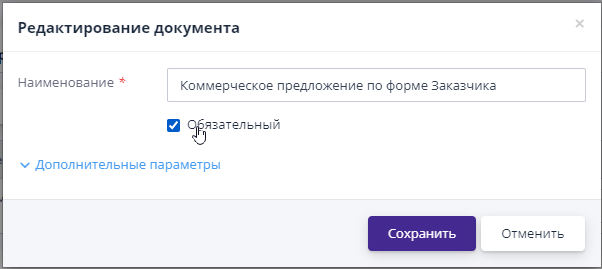
By default, all added documents will be required to be uploaded to application.To change this, just click on the link in the type name document and in the window that opens, uncheck the “Required” checkbox:
If any application documents relate to all lots of one auction, the document requirement should be indicated on the “General Information” tab procedures.
Securing the application
The obligatory nature and amount of security for the application are set individually for each lot.To ensure you need to specify the size (fixed value or percentage of the initial price), payment purpose and bank account (you can add an account on the “My Organization” page):
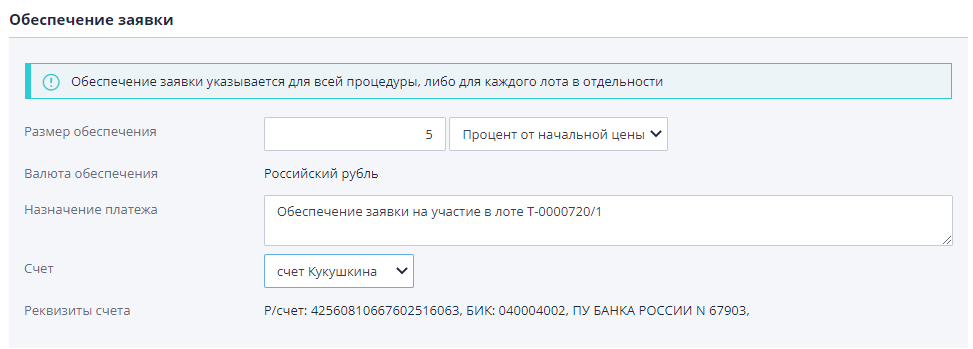
The completed data will be available for viewing by participants after publications of the auction.
Lot documents
In the lot, the organizer can add documents from which participants can obtain detailed information on a specific lot.Download available documents with the “Other Document” type.When loading, you must It is mandatory to indicate the name of the downloaded document. Uploading a document file to the site is carried out using the button "Add" next to the document title.
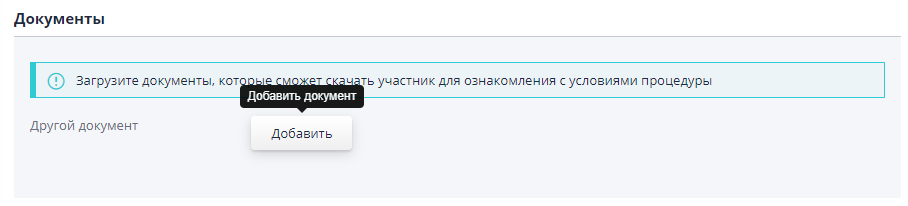
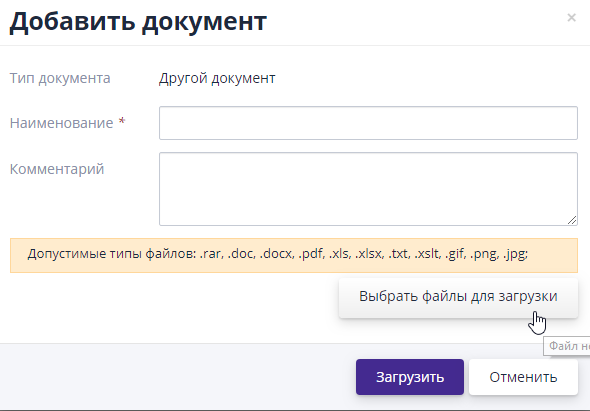
The list of acceptable file types for uploading will be indicated on the form download the document.Uploading a document can be done by one of two ways.
1st method: Click the “Select files to upload” button and select necessary documents from PC.To upload multiple files at once, You must hold down the Ctrl key on your keyboard.
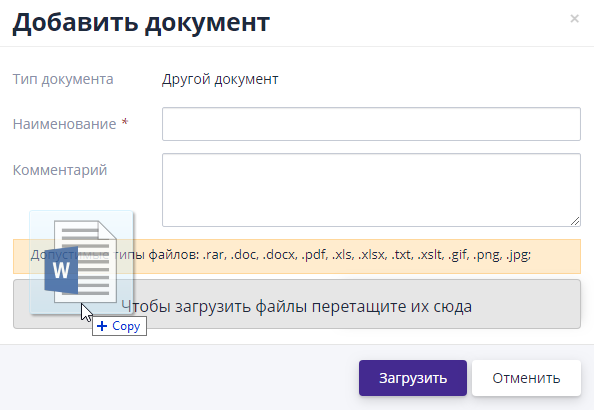
2nd method: Documents can be dragged and dropped onto the upload form.For this you need to select the desired file on your PC, hold down the left mouse button and drag the file onto the form.
You can specify a comment for each uploaded document. Description editing and deletion are available through the buttons located to the right of the downloaded document file:
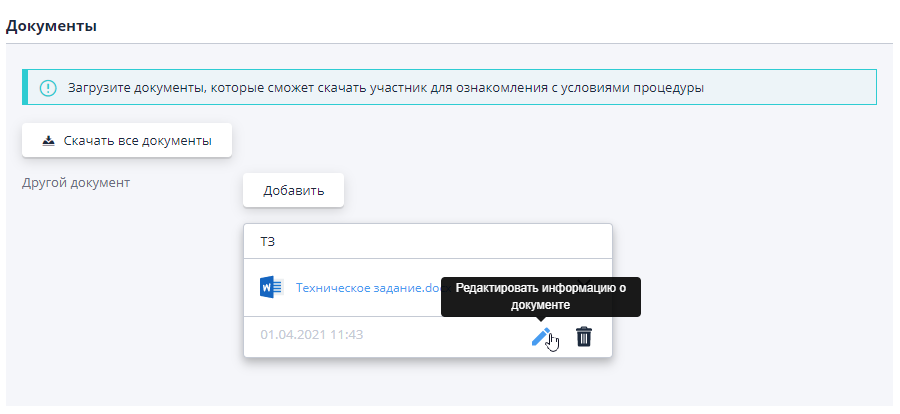
A maximum of ten documents can be uploaded, the maximum total number of files to upload - 100 pieces (one document can contain multiple document files).
Adding a new lot
If several lots are traded within the framework of one tender, additional lots can be added on the “Lots” tab.For this Just click the “Add” button.As a result, it will be created new lot.
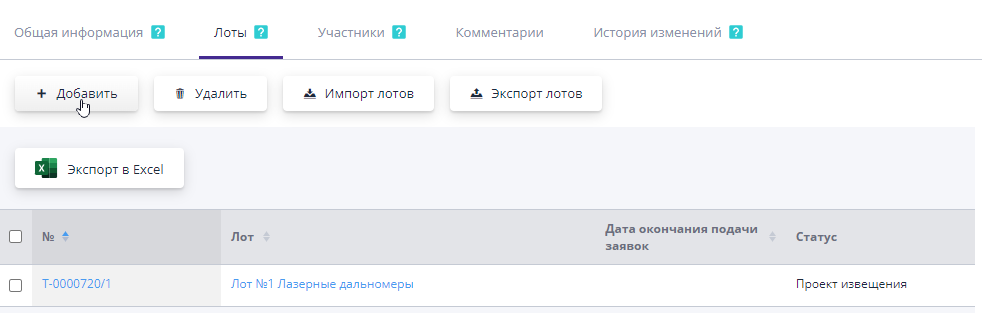
Filling out lot data is similar to filling out lot data, created by default.
Copying a lot
For the convenience of creating lots within one auction, there is possibility of copying the lot.Used when several lots have similar information that duplicates each other.For copying should go to the lot page in the draft notification status and click the button of the same name in the top action menu:
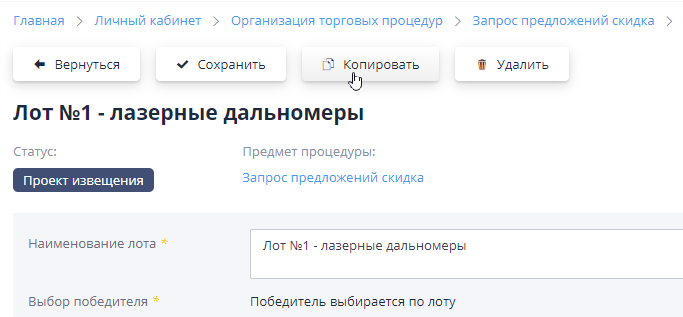
After copying, a duplicate of the original lot will be created with serial number that is free within the framework of the auction.Editing copied lot is similar to editing a created lot by default.
Import of lots
The system provides the ability to import lots from an Excel file.
To do this, you need to fill out information on one lot during the auction.Then On the “Lots” tab, check the box next to the lot and click the button "Export of lots":
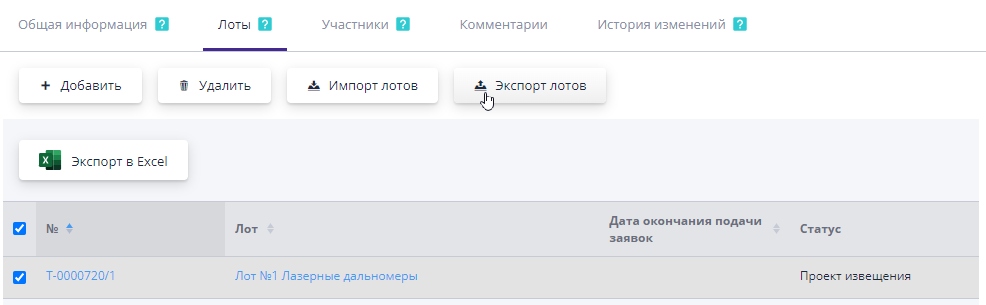
In the file that opens, by analogy with the already filled out lot, you should add information about new lots and save changes.
Forimport into auction added to the lot file on the “Lots” tab you need to click the “Import lots” button:
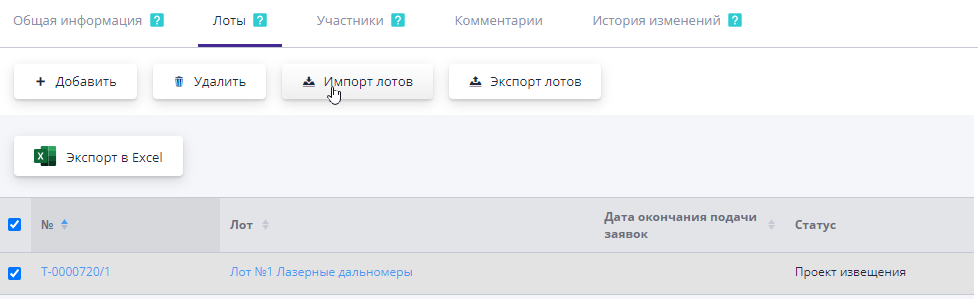
In the window that opens, specify the file to import and click the button "Import".
Invitations to participate in trading procedures
If the auction organizer wishes to notify its suppliers of a published trading, he can pre-generate invitations to participate in trading procedures for participants.Work with invitations is carried out on in the “Participants” tab of the edited auction.
There are two options for creating invitations:
-
Creation of invitations for certified companies to the ETP;
-
Create an invitation for registered/unregistered companies.
When you click on the button "Create invitations to certified companies" invitations will be automatically created for suppliers who certified for relevant types of economic activity, indicated on the procedure page.
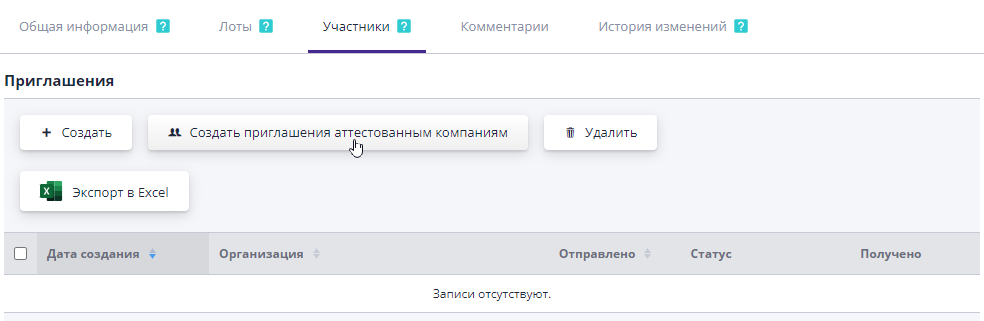
To add a company invitation, you must click the button "Create".A page will open to search for a company among registered on the site.If according to the entered data there is no If an organization is found, the invitation will be sent to the specified address email with an offer to register on the site.
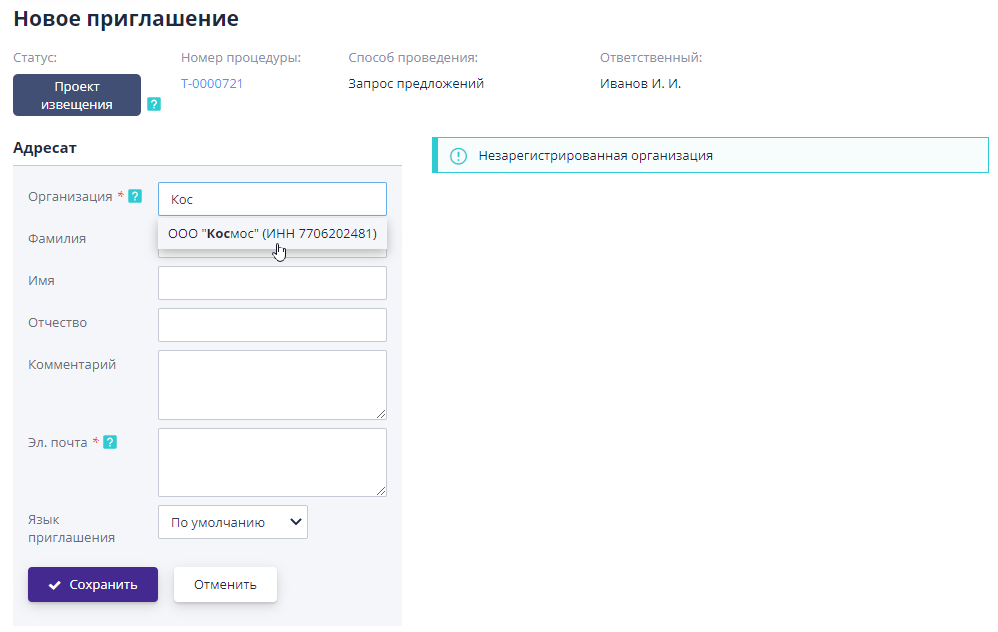
After saving the invitation, the “Participants” tab will display all created invitations to trade.
Unnecessary invitations can be deleted by marking them in the list and clicking the button "Delete":
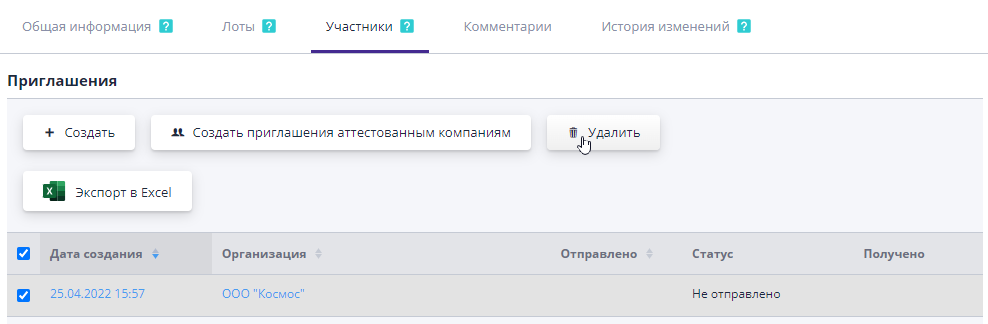
The tab also displays information on the status of invitations and applications. participants.Information in the table appears after the publication of trades.
Comments
If the system has comment functionality enabled, then on the “Comment” tab you can view all previously left comments or add a new comment.
To add a comment, you must fill in the “Comment” field and click on the "Send" button:
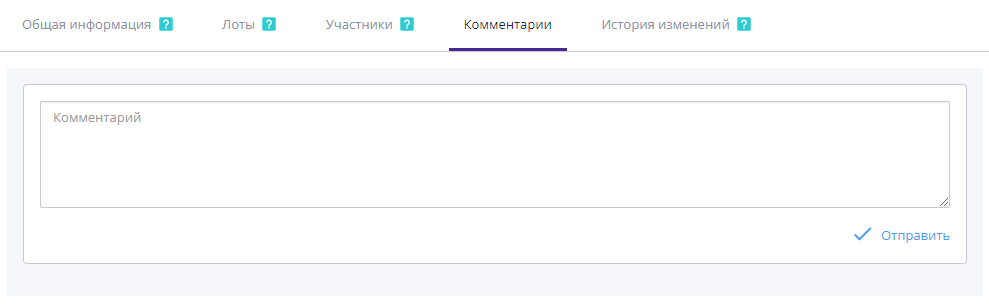
To edit an entry, click on the “Edit” button, to delete - “Delete”.
History of changes to the procedure
The auction organizer can view the history of changes in the procedure on tab of the same name.The table displays dates and times sequentially changing the status of the procedure according to the stages of its implementation, as well as users, who published or made changes.
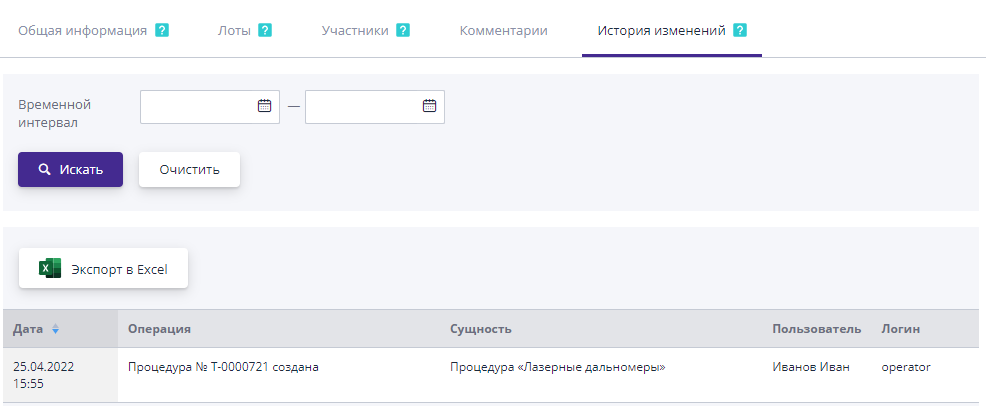
Publication of a trading procedure
Work on filling out the procedure is available at any time until it is completed. publications.To find a procedure in the system that you need publish, you should go to the “Organization of trading procedures” section. An unpublished trading procedure will have the “Project” status notices."By setting the search filter by status and part of the purchase name, It will be easy to find the right trade:
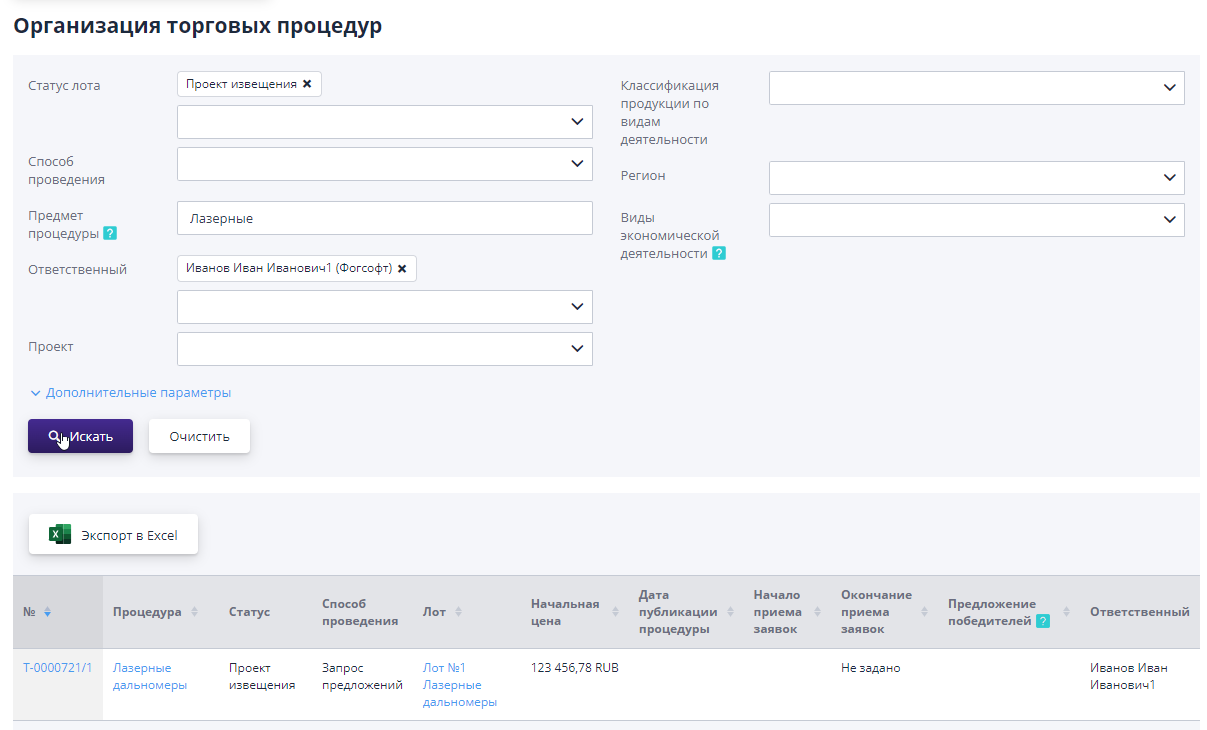
You can go to the trading procedure page using the link in the title procedures.After going to the procedure, the following actions will be available:
-
Publish - completes work with the draft trading procedure, and the data becomes available to all users of the system.
-
Generate notification - allows you to create a document file “Notifications” based on the completed information.
-
Copy - creates a copy of the current procedure with a selection of information, which must be transferred to a new auction.
-
Set up a connection with the project - you can add, change or delete connection with any project.
-
Delete - all information about the current tender project is deleted.
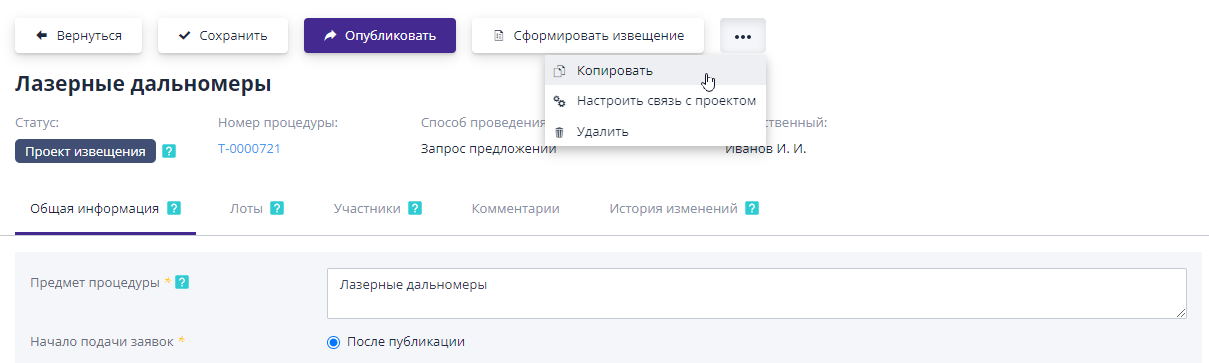
Publication of a trading procedure will be available if all its mandatory requirements are met. fields are filled in and documents are attached.If any information is missing enough, the system will issue a warning about this.After publication the trading procedure will switch to one of the statuses (depending on settings) “Notice published” or “Accepting applications”.
Setting up connection with the project
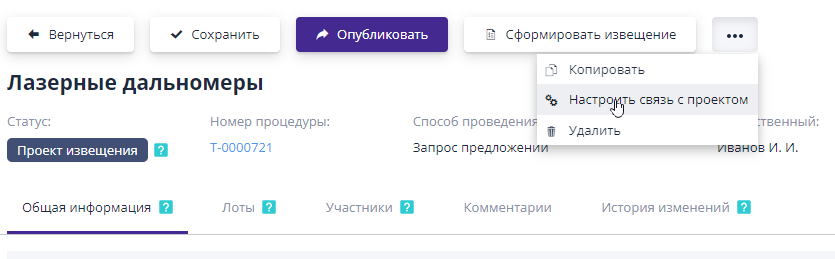
If the system has project functionality enabled, then the system has the ability to create projects. The project combines certifications, trade procedures and contracts.In order tooby tie procedure for a specific project or to change an existing connection, you need to click on the button ** “Set up a connection with the project”:**
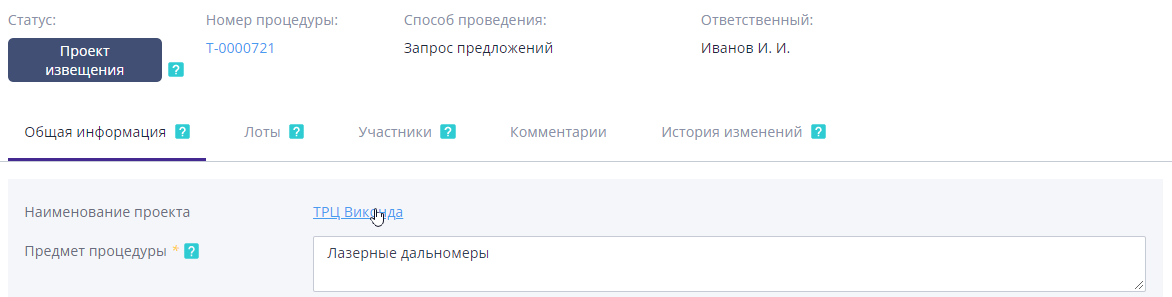
Then in the window that opens, select the desired project and click on the button "Confirm". A connection with the project will be created and this will be reflected in procedure page:
Accepting applications for the trading procedure
When the start date for accepting orders for a trade arrives, it will switch to the status “Accepting applications”, or it will switch to this status automatically after publications, depending on the trading settings.While accepting applications participants can submit and withdraw their applications for participation according to the procedure, and the organizer can view them and request additional information if necessary.
Information about participants for all lots is located on the “Participants” tab. Here you can view information on the current status of the application participants and work with invitations.
Applications of participants, block “Counterparties”
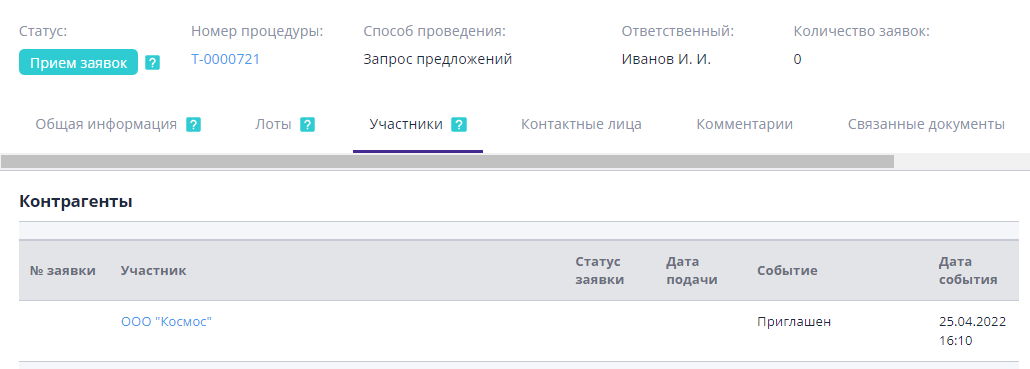
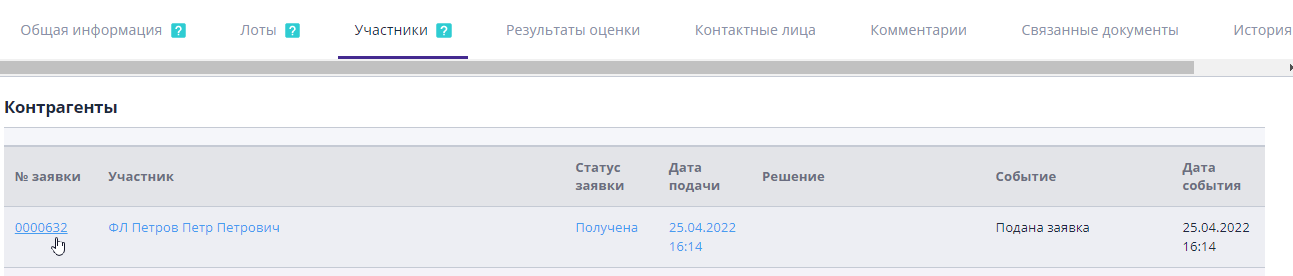
The “Counterparties” block provides information about the participants: their interest in participation, status of applications and invitations.
-
No. - column contains the number and link to the application received from bidder.
-
Participant - displays the name of the participant’s company and a link to page for viewing information about the organization.
-
Application status - displays the status of the application for participation from the moment it was submitted creation by the counterparty.
-
Submission date - the date of submission of the application for participation.
Let's take a closer look at working with information for each column.
The link to the participant’s application is located in the “No.” and “Application Status” columns:
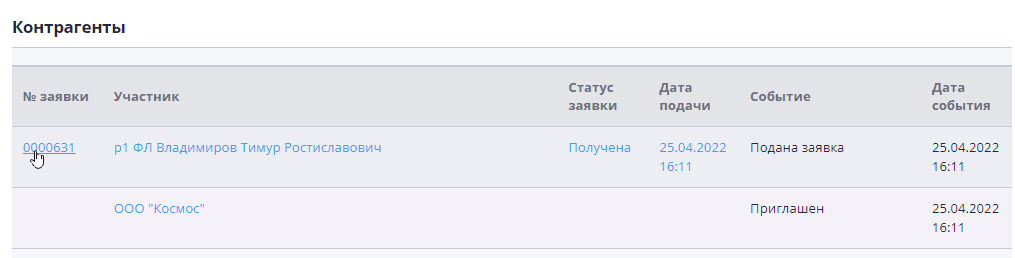
When you click on the link, the participant's application will open.Detailed description work with the application is provided in the subsection of this chapter “Working with data received application for participation."
Based on the status of the application, you can determine at what stage of work with the application the participant is located:
-
Received - the participant has submitted an application for participation and is waiting for the start bidding
-
Changes required - the participant must update the application after publication of changes in the trading procedure.
The "Member" column contains a link to view information about the organization participant:
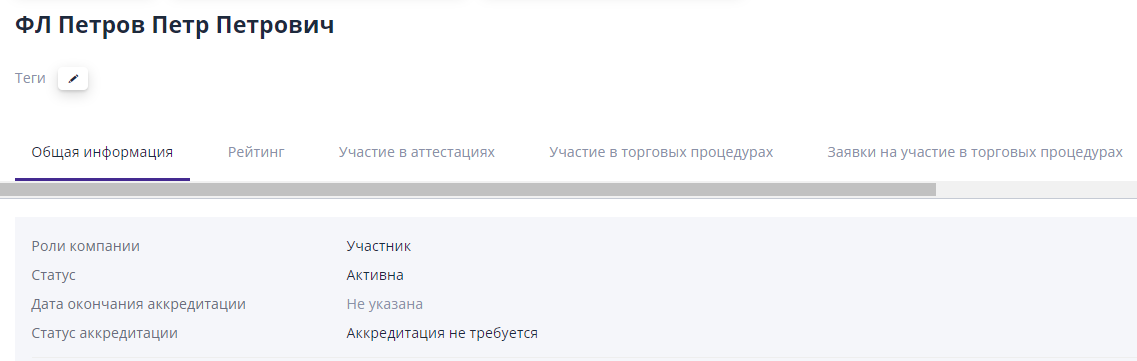
The Event Date column displays the time of the last event.
Working with data from a received application for participation
During the acceptance of applications, the organizer can familiarize himself with the submitted applications from the participants.
View the details of the received application, request additional information
You can go to view a specific application using the link in columns "No", "Application Status" or "Submission Date" of the "Counterparties" table on "Participants" tab.
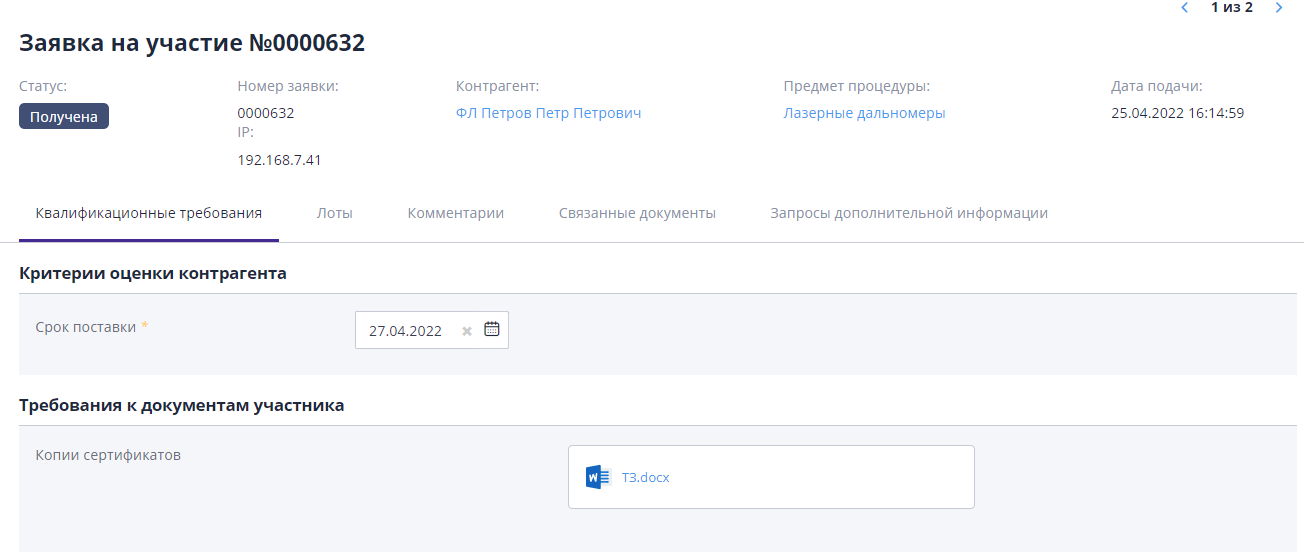
The application is divided into logical parts by tabs.
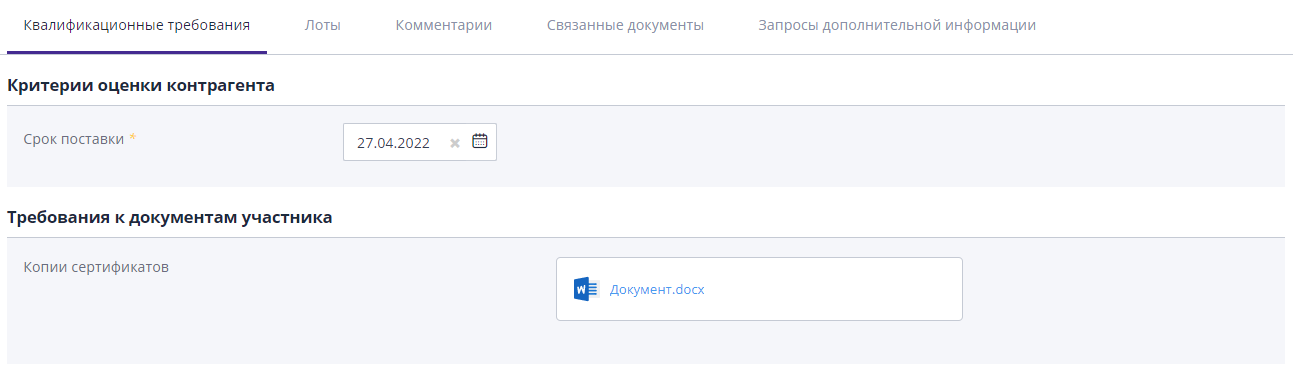
“Qualification Requirements” tab - contains information requested in general for the procedure.These include evaluation criteria and documents.
“Lots” tab - displays the participant’s proposals for each lot.Lots the application is marked: “I participate” or “I do not participate,” depending on availability of an offer for it.You can switch between lots by tabs on the left.Commercial information will appear in the center of the page. offer for the selected lot:
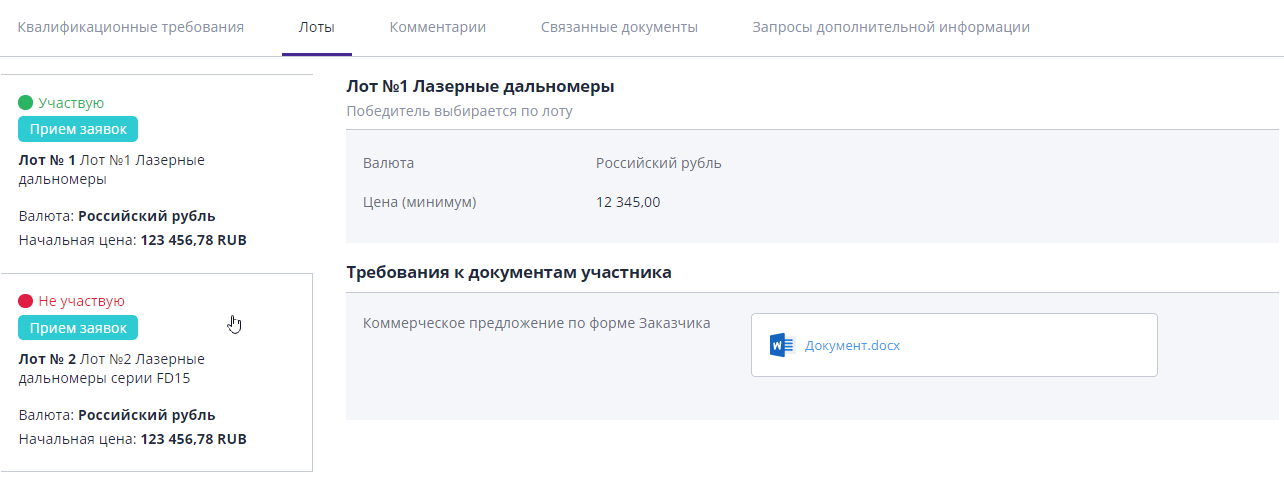
When viewing an offer for a lot, the participant's offers for each item that interests him or an offer for the lot as a whole. The display of information depends on where the criteria were added - at the position level or at the lot level.
If the item was allowed to provide analogues instead of the original, the participant may indicate other specifications for the item.In this case they will be displayed as a sub-item of the main position:
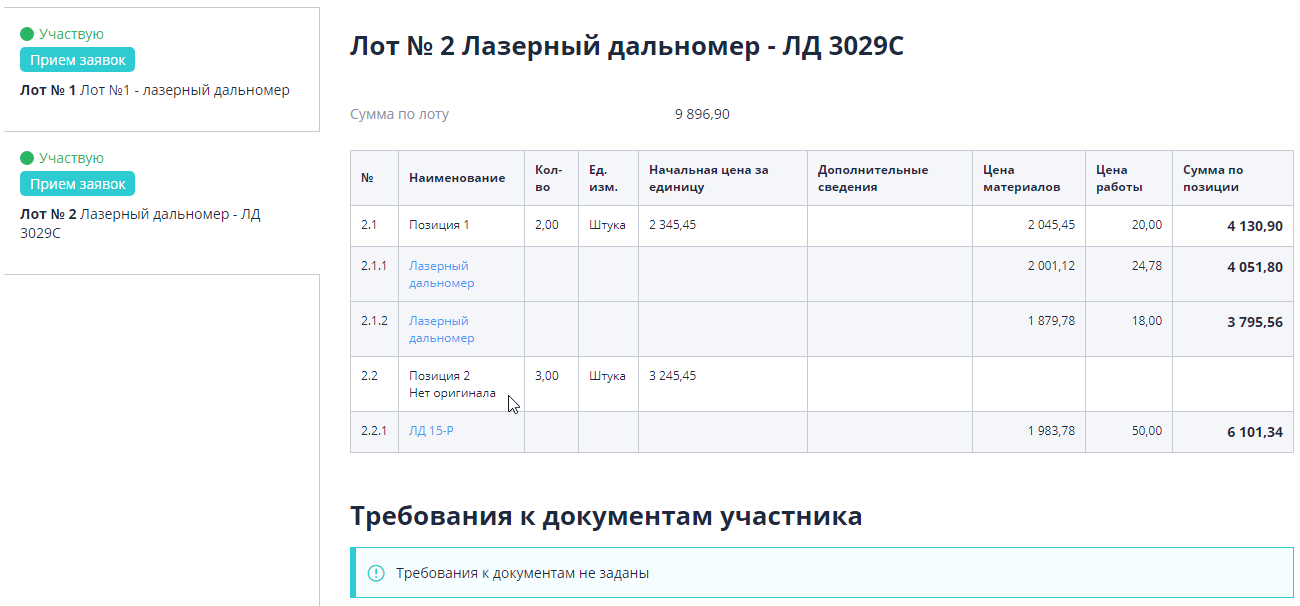
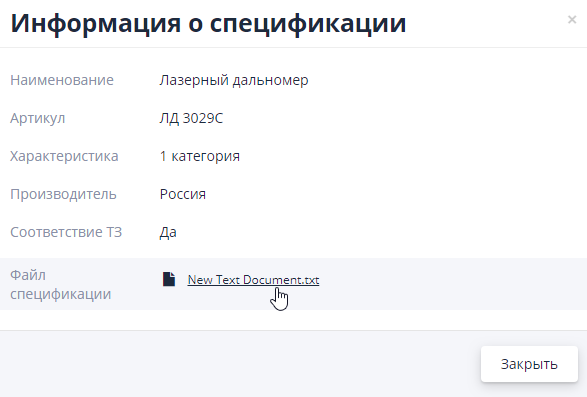
Analogues in the table can also be recognized by their serial number. The link in the name opens information about the specification to view:
On the “Comment” tab you can view all previously left comments or add a new comment on the application.
The "Related Documents" tab contains all documents from the section“Document flow” related to this application.
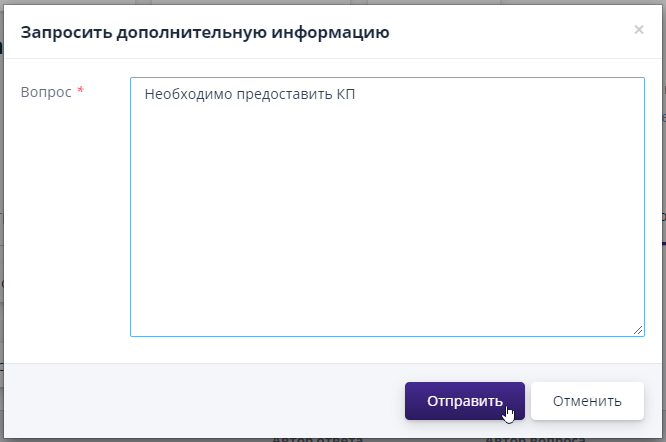
The "Requests for additional information" tab is used when there are comments on the application, clarification of any information is required or Additional supporting documents are required.For To create such a request, you must use the “Request” button additional information":
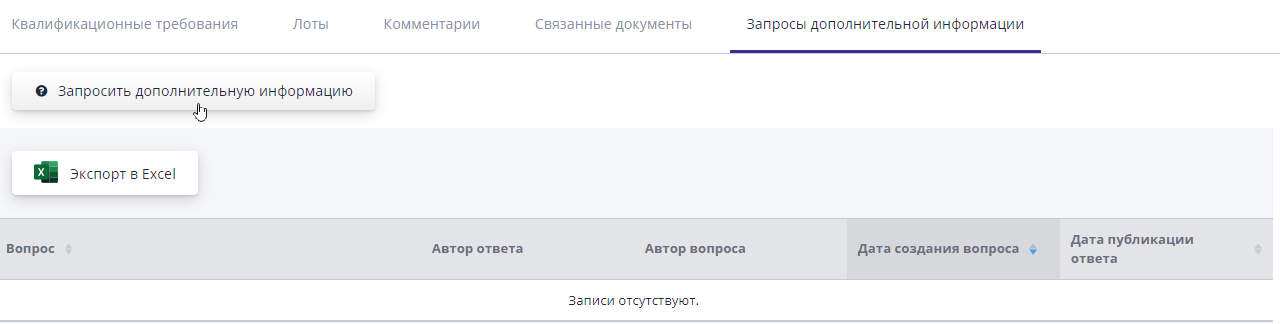
A form for entering a question will open.The request will be sent to the participant by by clicking on the "Submit" button:
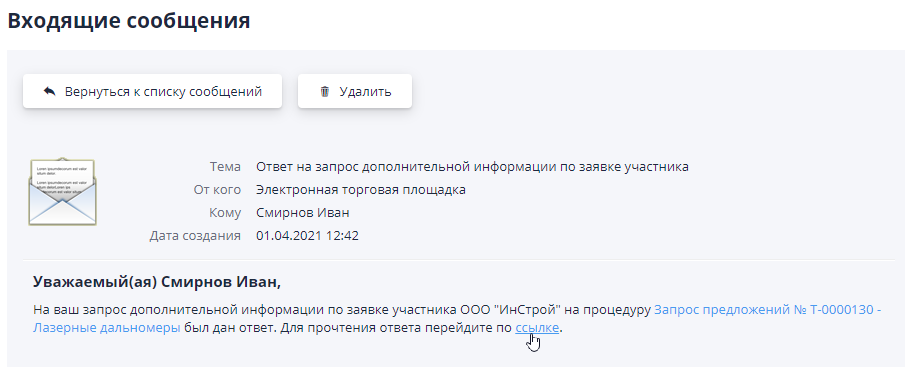
When a participant sends a response to a request, the organizer will receive notification with the subject line “Response to a request for additional information on participant's application."When you click on the link from the letter, you will be able to see the answer:
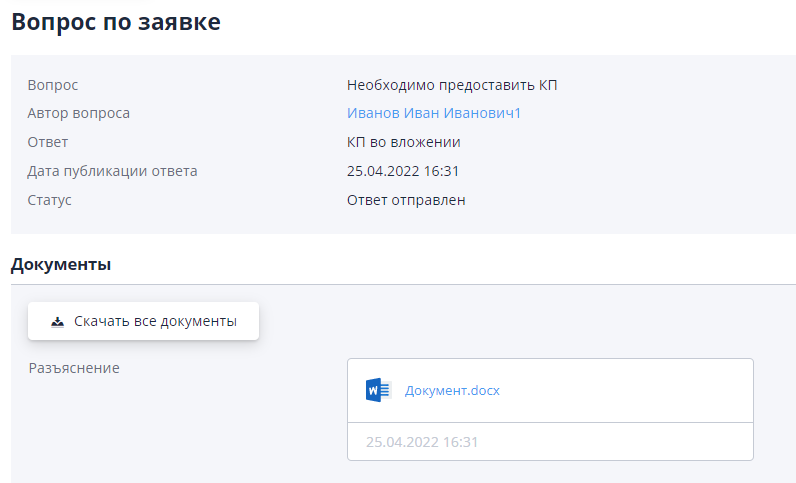
On the page that opens you will be able to see the participant’s response and download the attached documents:
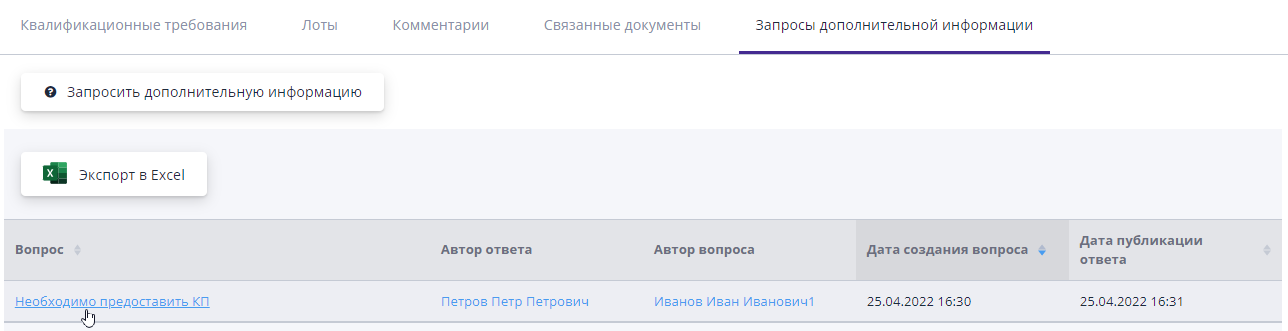
There is no limit to the number of requests for clarification.All of them are available for view in the table on the "Requests for additional information" tab in each application.You can view the response to a specific request by following this link in the “Question” column:
Comparison of received applications
Using the “Compare orders” button in the trading procedure, you can carry out comparison of information specified in all submitted applications for participation.
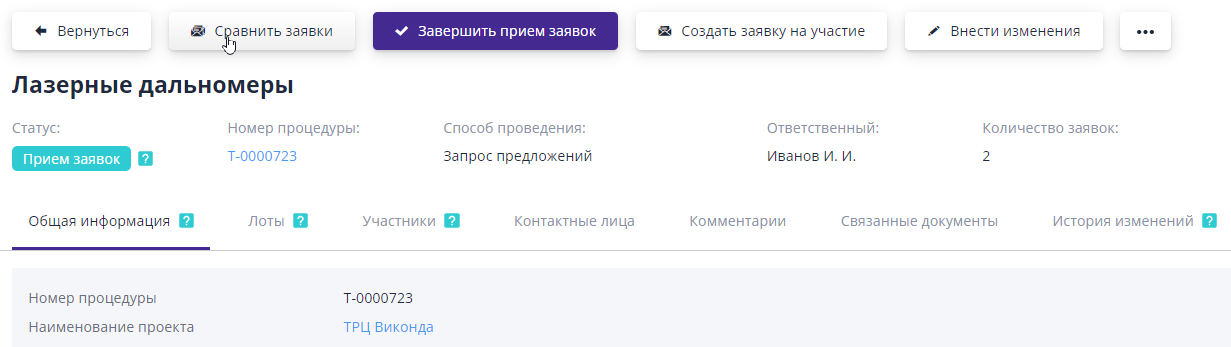
On the application comparison page, a comparative table is prepared for parameters and filters specified by the organizer.
The display of information in the table can be adjusted using parameters specified in the filters.Settings appear when expanded "Visualization and filtering options" links:
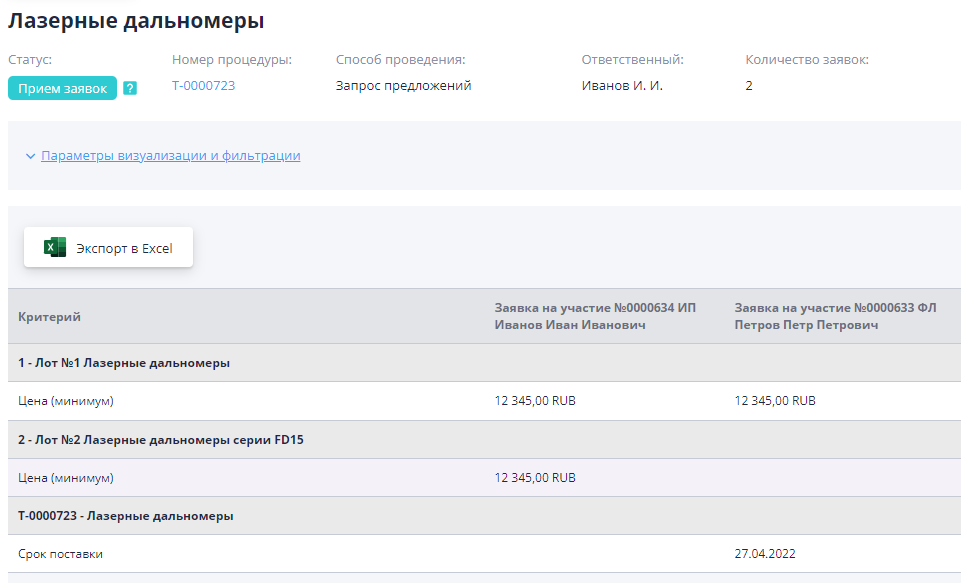
In the parameters you can adjust the following data:
-
Selection of elements for analysis;
-
Selection of participants and criteria for comparison;
-
Selection of stage for analysis;
-
Visualization options.
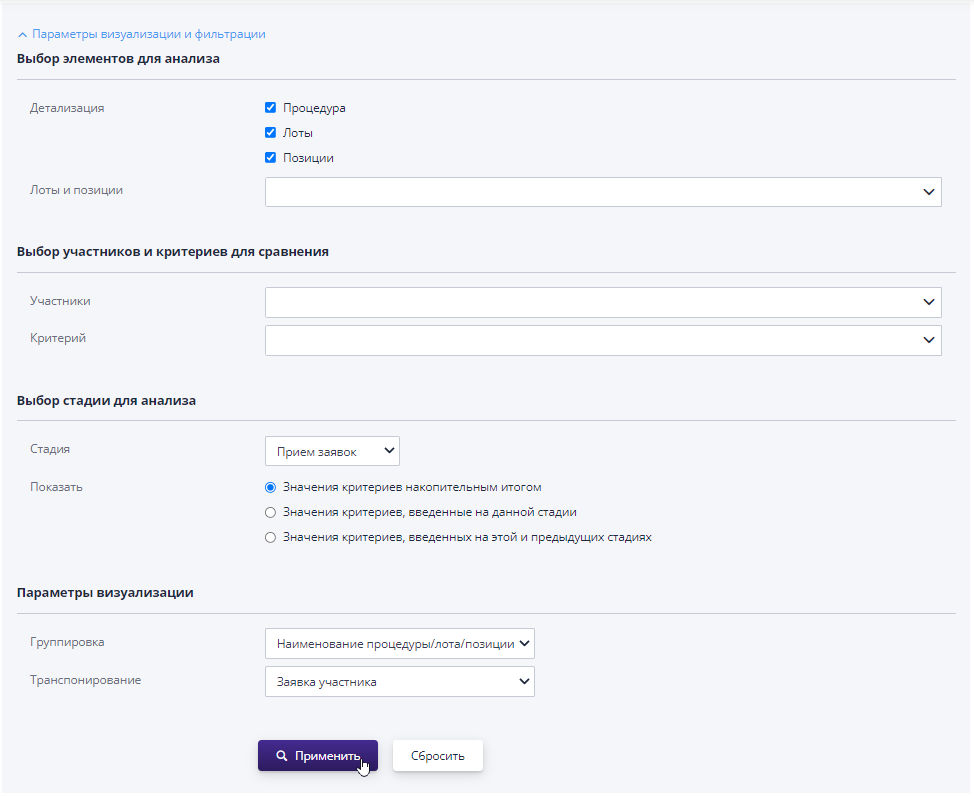
Let's take a closer look at each of the customizable parameters.
Selecting elements for analysis.
As a detailing parameter, you can select the procedure as a whole, lots or positions.Elements can be displayed either individually or all straightaway.The selected parameters are displayed in a comparison table.
You can also select a specific element from the directory for which you will the application criteria are shown (specific lot or lot position).
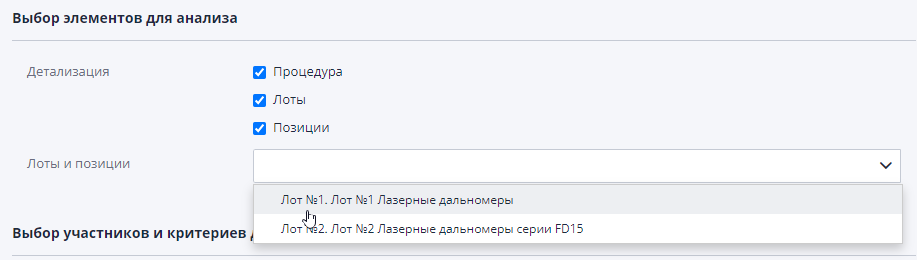
Selection of participants and criteria for comparison.
In the list of participants, you can select only those companies that have submitted application for participation in the auction.
A list of criteria is generated in a similar way.

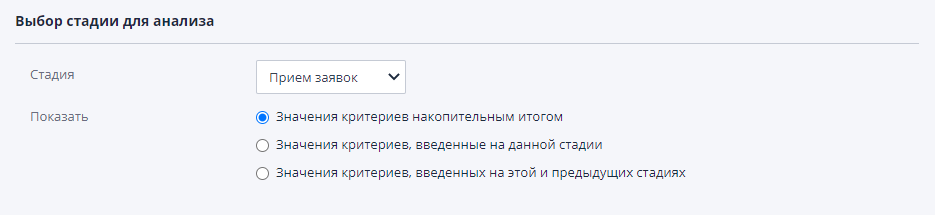
Selecting a stage for analysis.
At the stage of accepting applications, only this is available for selection.But further in It will also be possible to select rebidding stages as a stage.
If there were several stages of the procedure, you can indicate which values display it for comparison
-
Criteria values as a cumulative total - shows the criteria with all stages, changes according to them.
-
Criteria values entered at this stage - shows criteria from only one stage selected in the previous setting.
-
Values of criteria entered at this and previous stages - shows the criteria from the currently selected stage and from the stages that were carried out before her.
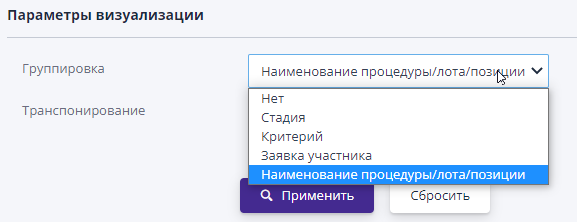
Rendering options.
The values of these filters match and set the values for the rows (grouping) and columns (transpose).
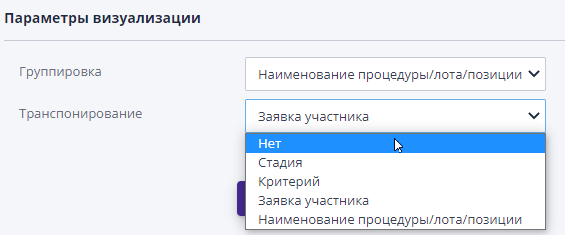
Let's look at the example of specific selected parameters.Let's choose grouping according to the participant’s proposals, and transposing according to criteria. As a result, we get a table grouped by rows by name purchase positions within the framework of a submitted application from one company.The columns display the criteria requested as part of the purchase.
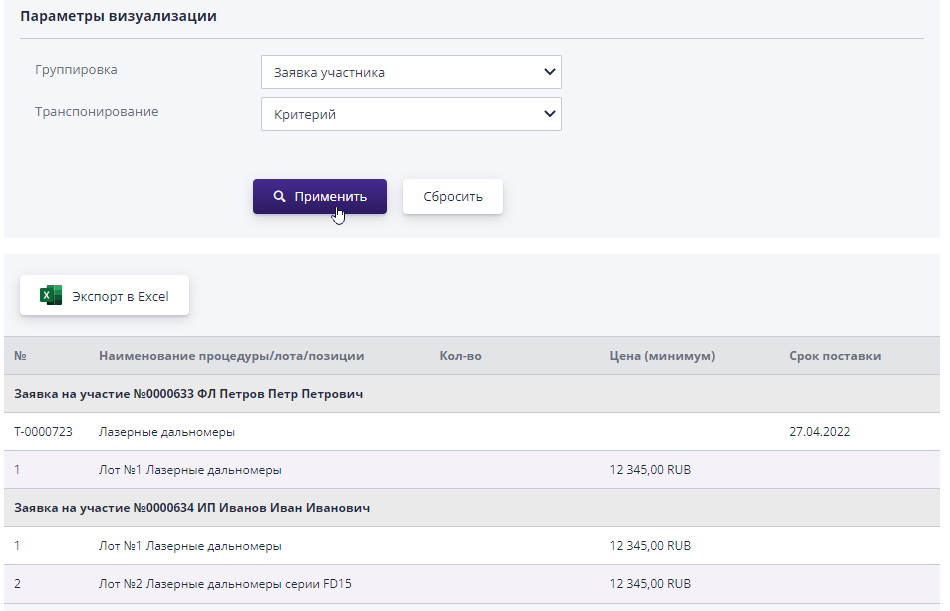
A table with the selected parameters is generated when you press the button "Apply".You can return to the default settings by clicking the button "Reset".
Comparison of bids is available at any stage of the auction and works the same.The available values in search filters depend on the specific bidding and its stages.
“Invitations” section
If at stage pinvitations were created for the draft notice, they will be automatically sent to participants after the auction is published, and will go to the “Sent” status.
Creating invitations is similar to their creation at the stage of the draft notice (see Section “Invitations to participate in trading procedures”).But when working with invitations at the stage of accepting applications, additional options.
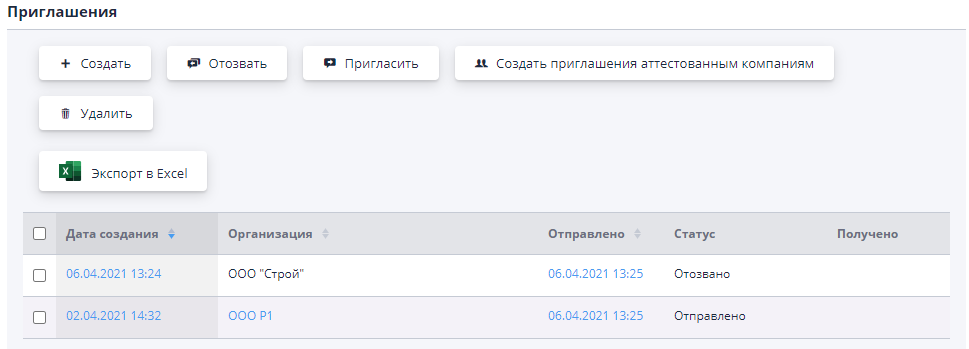
There are two options available for creating invitations: creating an invitation for registered and unregistered company (not certified for site by the organizer).
When you click on the “Create” button, a search page will open companies among those registered on the site.If according to the entered data organization will not be found, you can enter information to create invitations manually.In this case, the invitation will be sent to the specified an email address with an offer to register on the site.
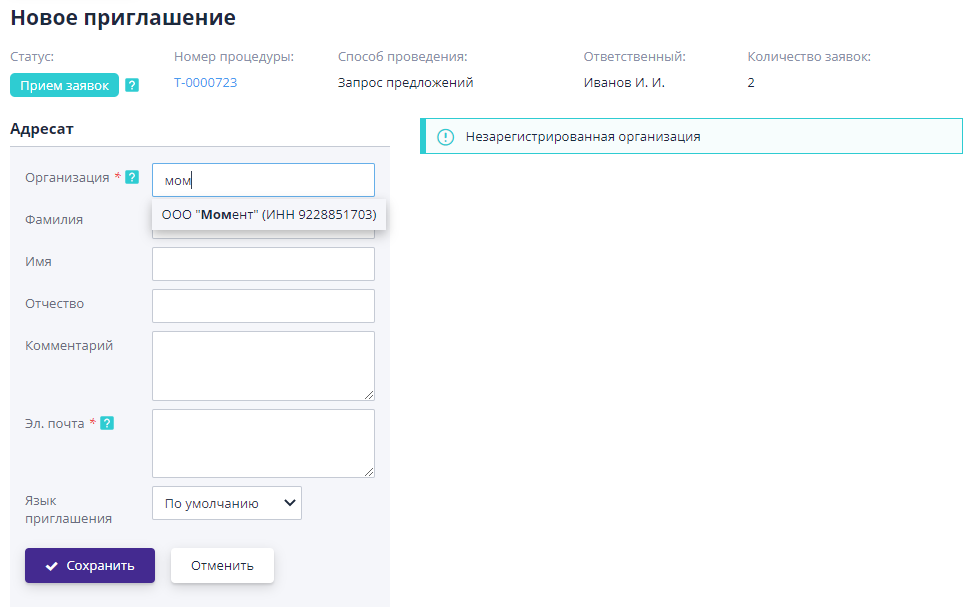
After saving the invitation, it will be added to the table with previously created invitations.
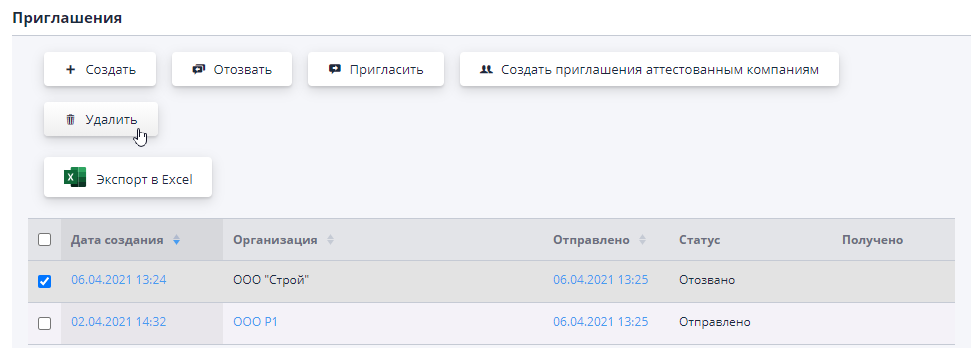
Erroneously created invitations can be deleted by checking the box in the list all invitations and clicking the “Delete” button:
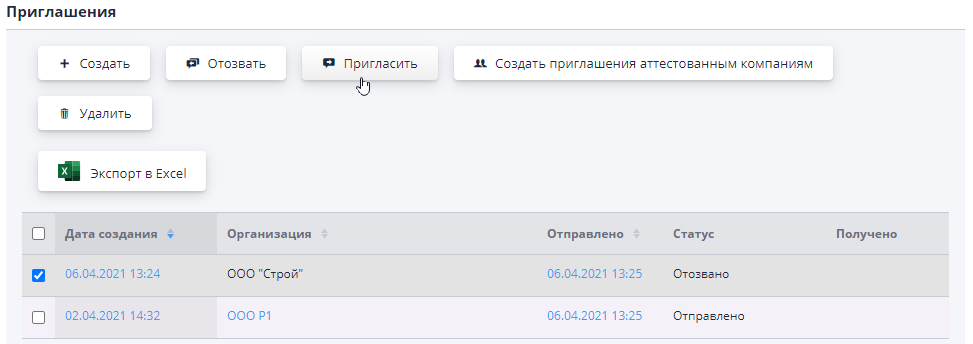
Invitations that have not yet been sent or invitations that have been withdrawn can be send by checking them in the table and clicking the “Invite” button:
If the invitation was sent to the organization by mistake, you can recall by marking in the table and clicking the button of the same name:
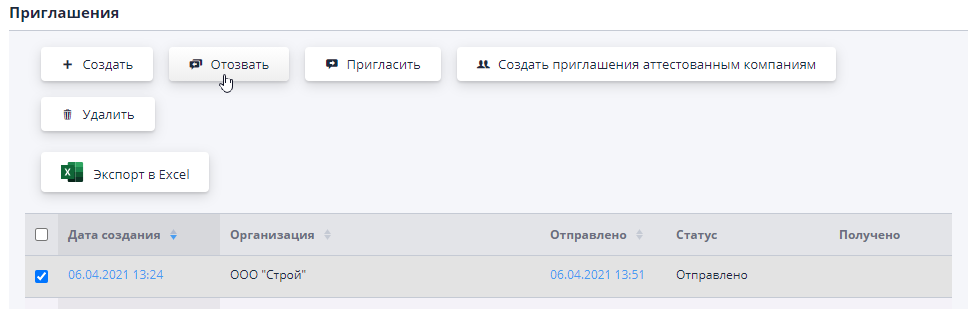
Work with invitations is available to the organizer until the deadline for accepting applications according to the procedure.
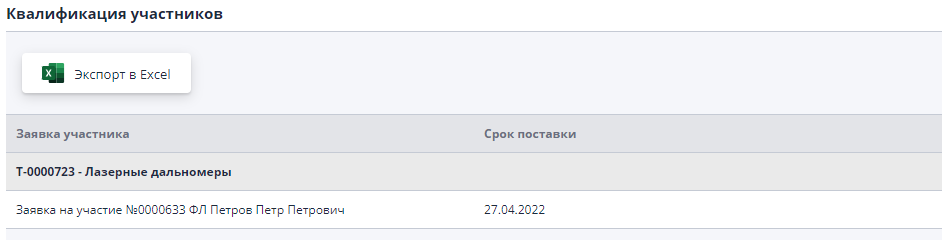
Section “Qualification of participants”
The “Participant Qualifications” block displays a summary table of criteria of the procedure that participants filled out as part of the application for participation.If any of the criteria requires clarification, you should go to the participant’s application and request additional information.